How to Extract Text from Screenshots
A practical guide to screenshot OCR in the browser for copying text from app screens, slides, tables, and error messages.
There is text in a screenshot — an error message, a settings dialog, a table — and you need it as real text. Retyping is slow and error-prone. The OCR tool on this site runs in your browser, and you can paste the screenshot straight from your clipboard.
Try it with a real sample
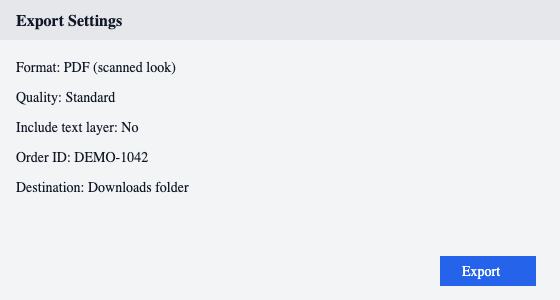
Download this sample dialog image and follow the steps below with it, or use your own screenshot:
- Download the sample image (demo-screenshot.png) — 560×300 PNG
On desktop: paste from the clipboard
- Open Image to Text.
- Copy your screenshot to the clipboard — Control+Command+Shift+4 on macOS (plain Command+Shift+4 saves a file instead of copying) or Win+Shift+S on Windows.
- Click the drop area to focus it, then press Cmd+V / Ctrl+V. The image loads immediately.
- Choose a mode — Auto covers most cases; Screenshot is tuned for UI text.
- Click Run OCR, then proofread the result and use Copy text or Download TXT.
You can also drag the image file in, or browse for it — PNG, JPG, JPEG, and WebP all work.
On mobile: screenshot, then upload
Take the screenshot, open the site in your mobile browser, tap the drop area, and choose the screenshot from your photo library. The steps after that are identical.
What the OCR actually returns
We ran the sample above through the tool and kept the real output (2026-10-09). The engine reads text regions one by one, so the result comes back as a stream — including the button label, because OCR does not know what a button is:
Export Settings Format: PDF (scanned look) Quality: Standard
Include text layer: No Order ID: DEMO-1042
Destination: Downloads folder

Export
That is the honest expectation: accurate words, minor tidying needed. Use the edit-friendly result tabs, and send the text to the cleaner if you need line breaks fixed.
When screenshots OCR badly
- Very small text blown up from a low-DPI capture loses stroke detail.
- Text over busy backgrounds or transparency artifacts confuses region detection.
- Handwriting is out of scope — this model is built for printed text.
- If the first run fails to load the model, the retry button keeps your image and tries again.